Planned week
Plan the days you train.
Put each routine on a day and at a time in the calendar. Peak Health names your next session, and each week shows which planned sessions you completed. Peak Health never plans a day for you.
Plan a routine
In the calendar, plan a routine on a day and at a start time. A day can hold more than one planned session, in clock order. You can move a session you planned once to another day or time, or clear it.
You can also say that a day is a rest day. A day is a rest day or has planned sessions, never both.
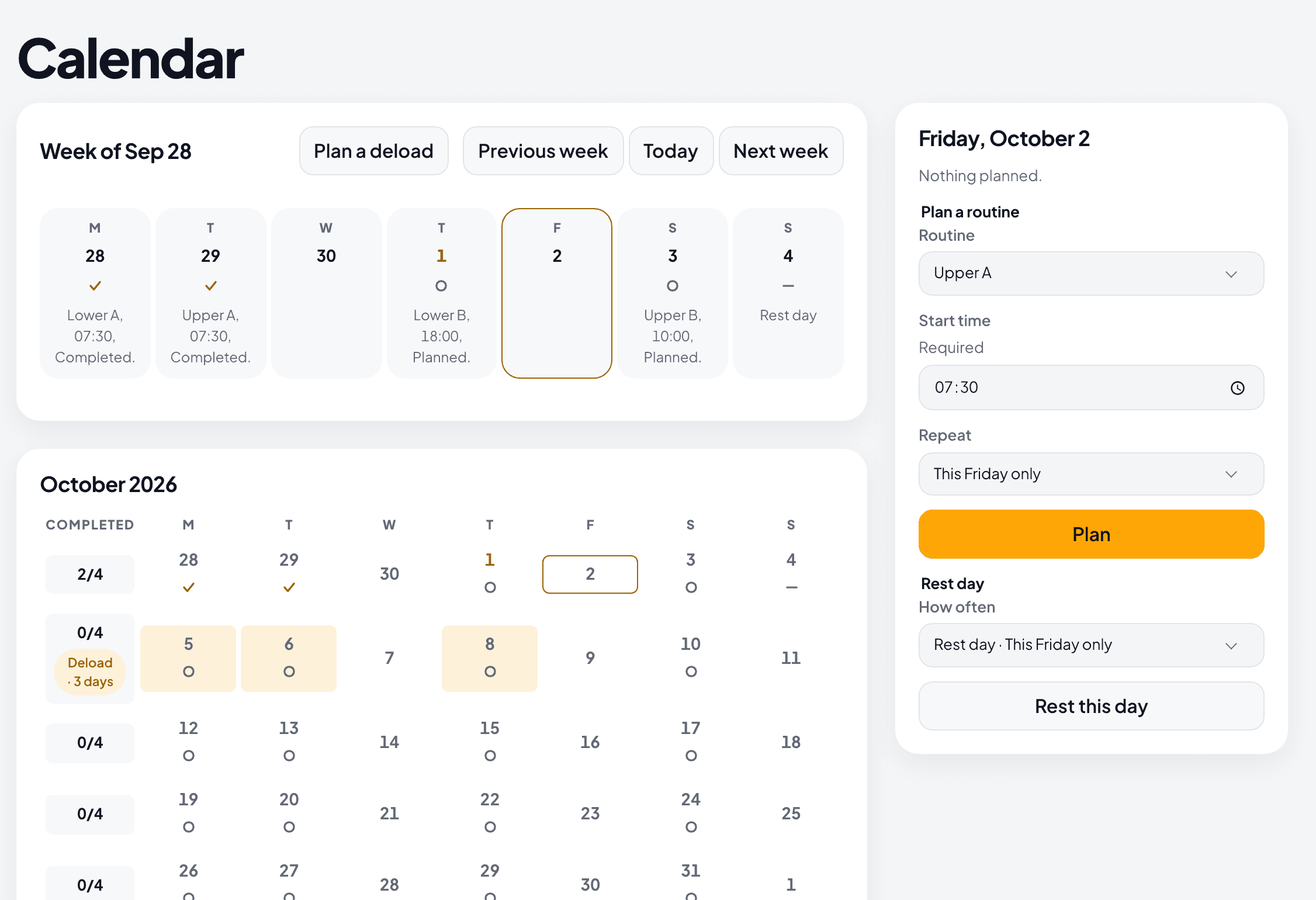
Repeat
Repeat a routine on the same weekday and at the same time, for the number of weeks you choose or with no end. A rest day can repeat too. To skip one day of a repeat, use Skip this day.
When you change the time of a repeat, every day from today on changes. The days before today stay as they were.
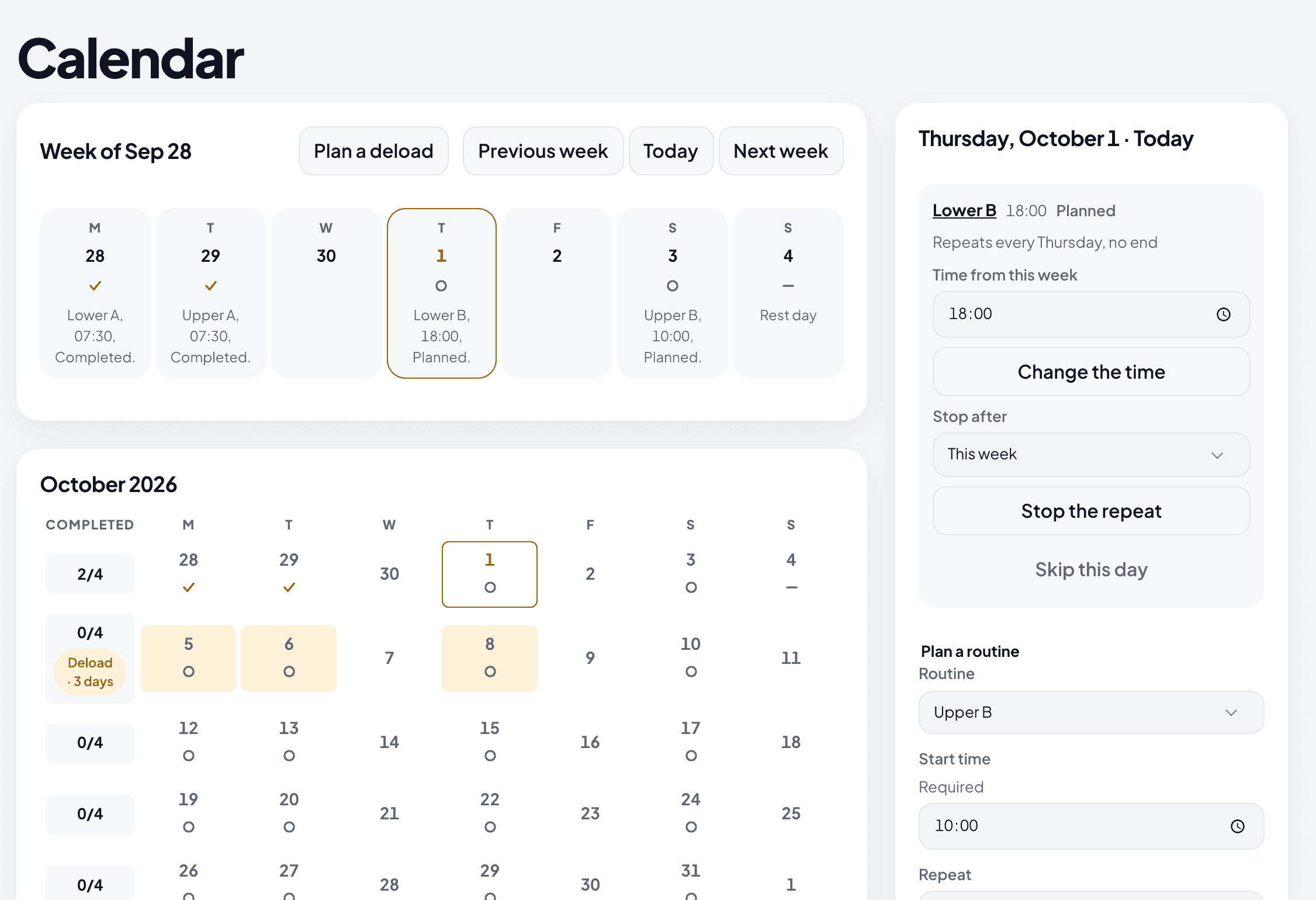
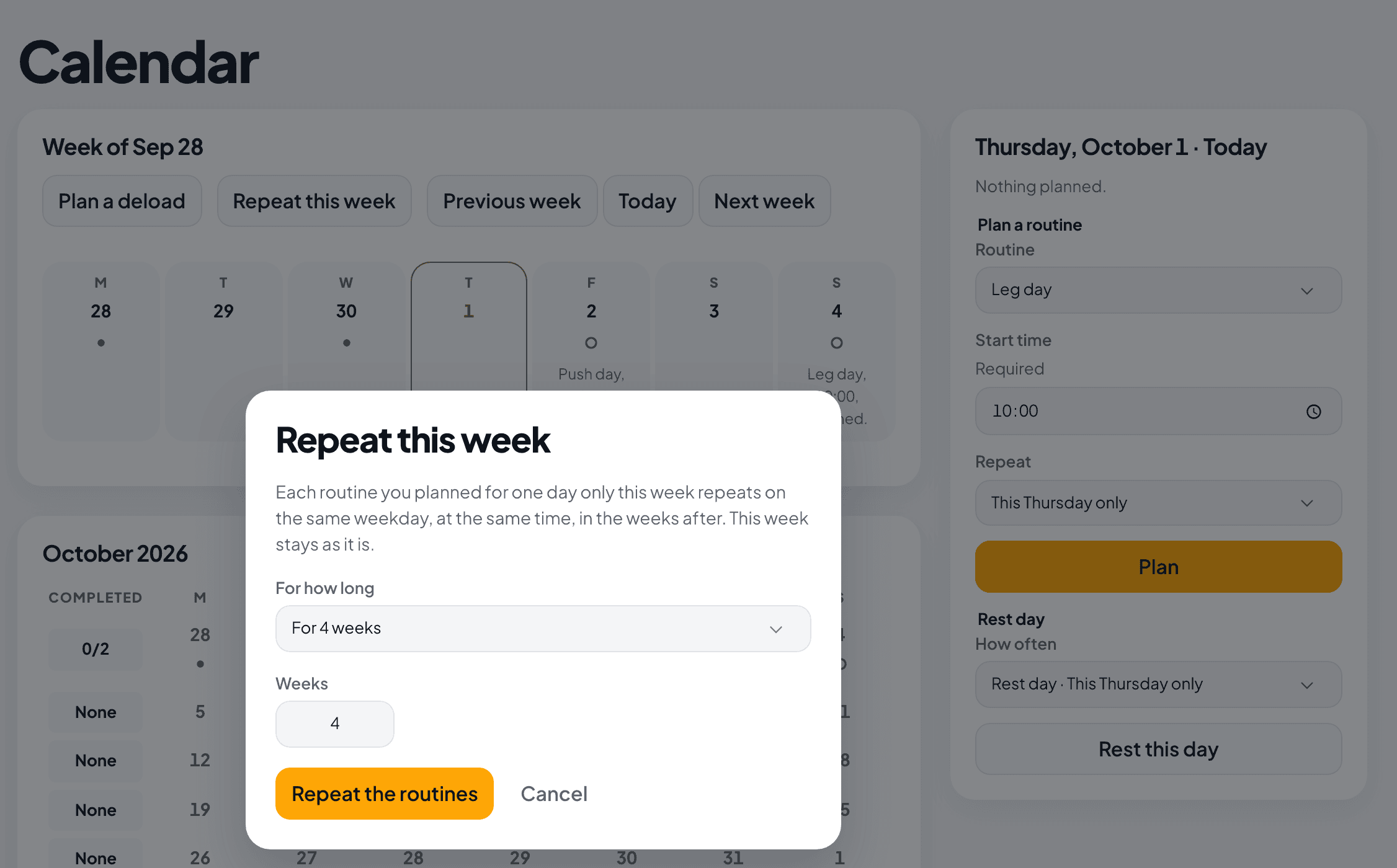
Repeat this week
One press on a training week makes each routine you planned for one day only that week repeat on the same weekday and at the same time in the weeks after. You choose how many weeks, or no end. The week itself stays as it is.
When a later day is not free, nothing repeats, and the calendar names each day in the way.
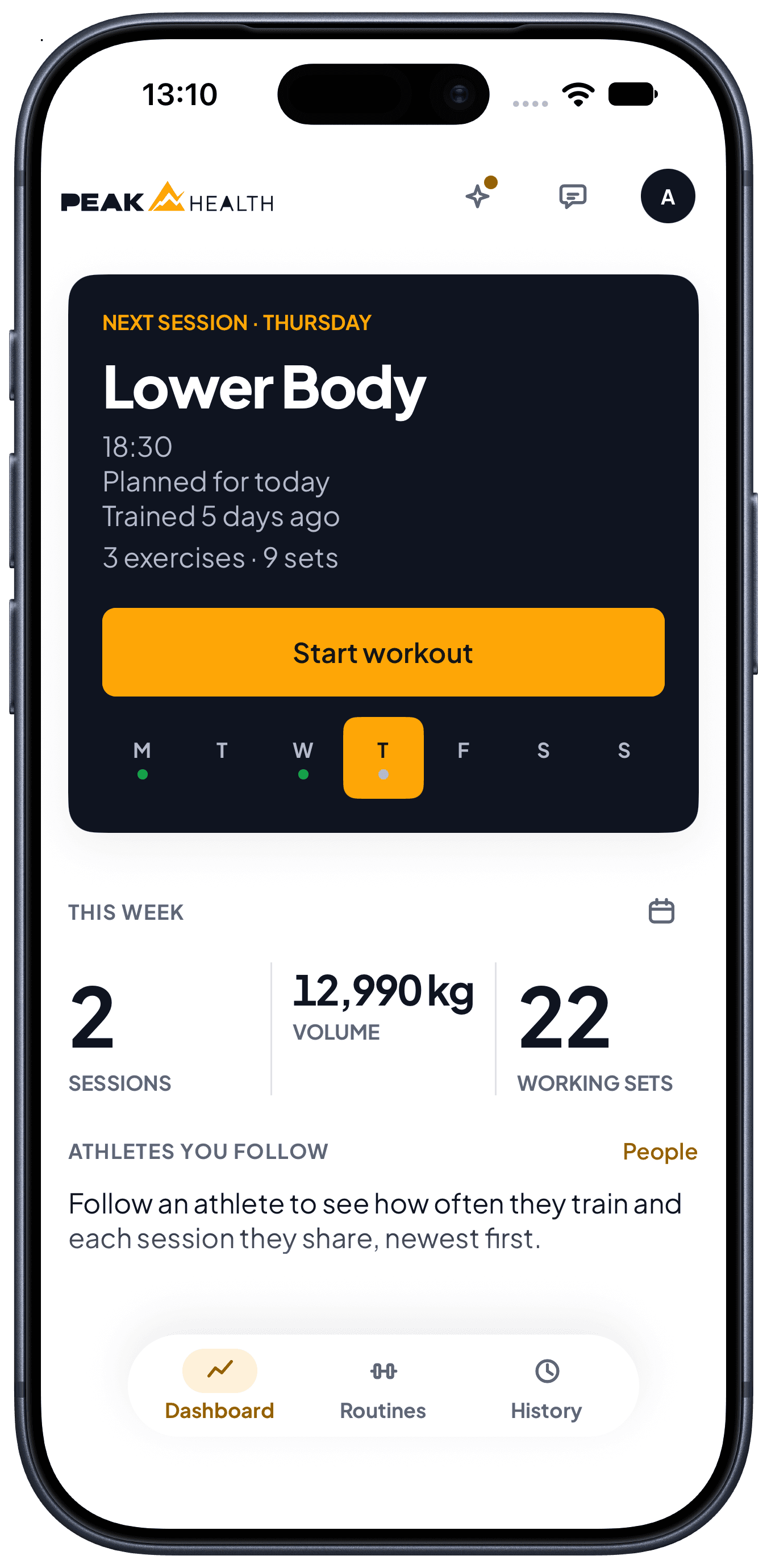
Next session
Your home screen names the next planned session and its time. When you complete it, it says on which day, then names the next one. On a rest day, it says so first.
Each training week
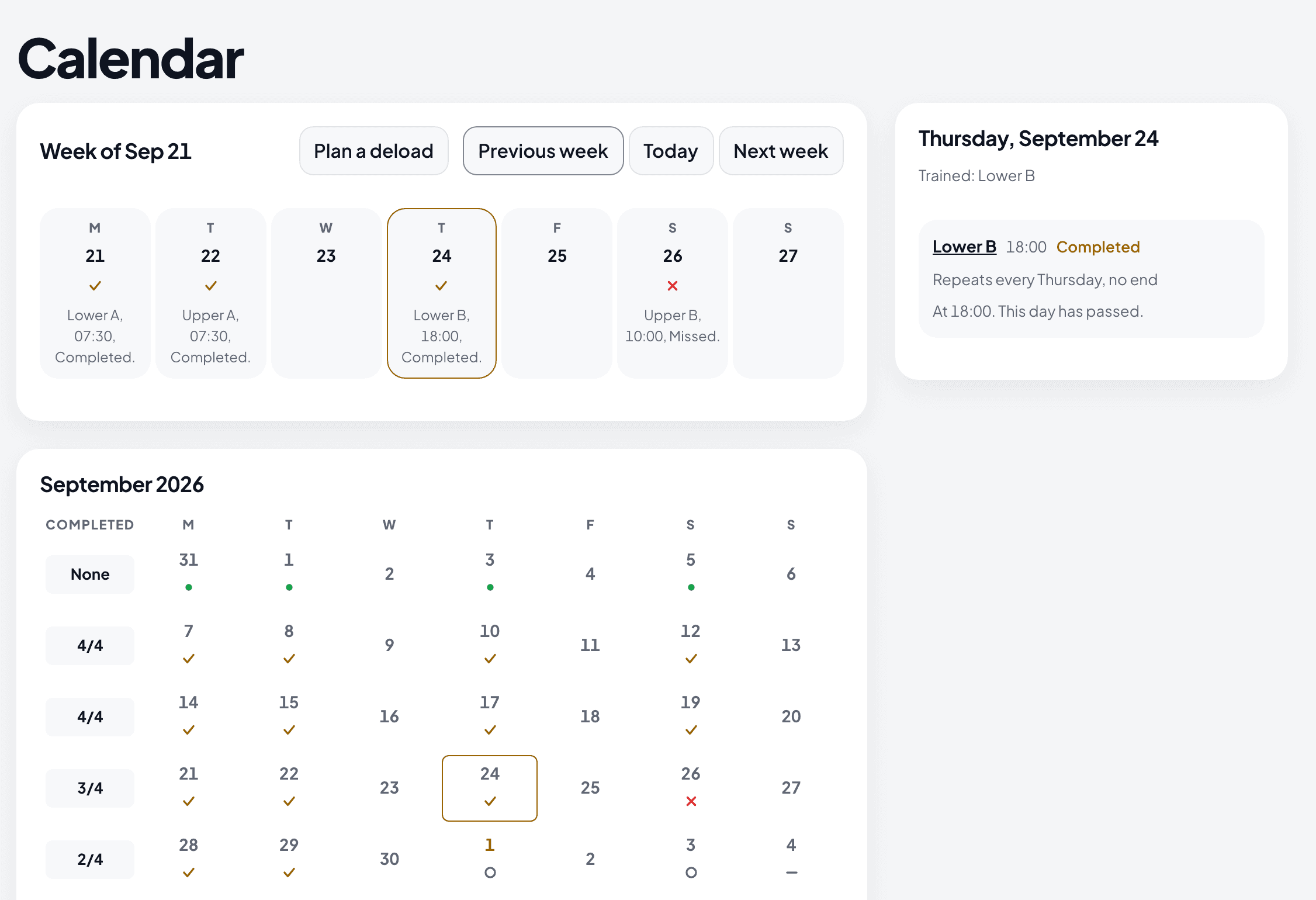
Each training week shows its days, and each planned session as planned or completed. A workout of the same routine on any day of that week completes it, so a session you train on another day still counts. When the week ends, a planned session you did not complete shows as missed.
Completed sessions shows how many of the planned sessions you completed.
Deload days
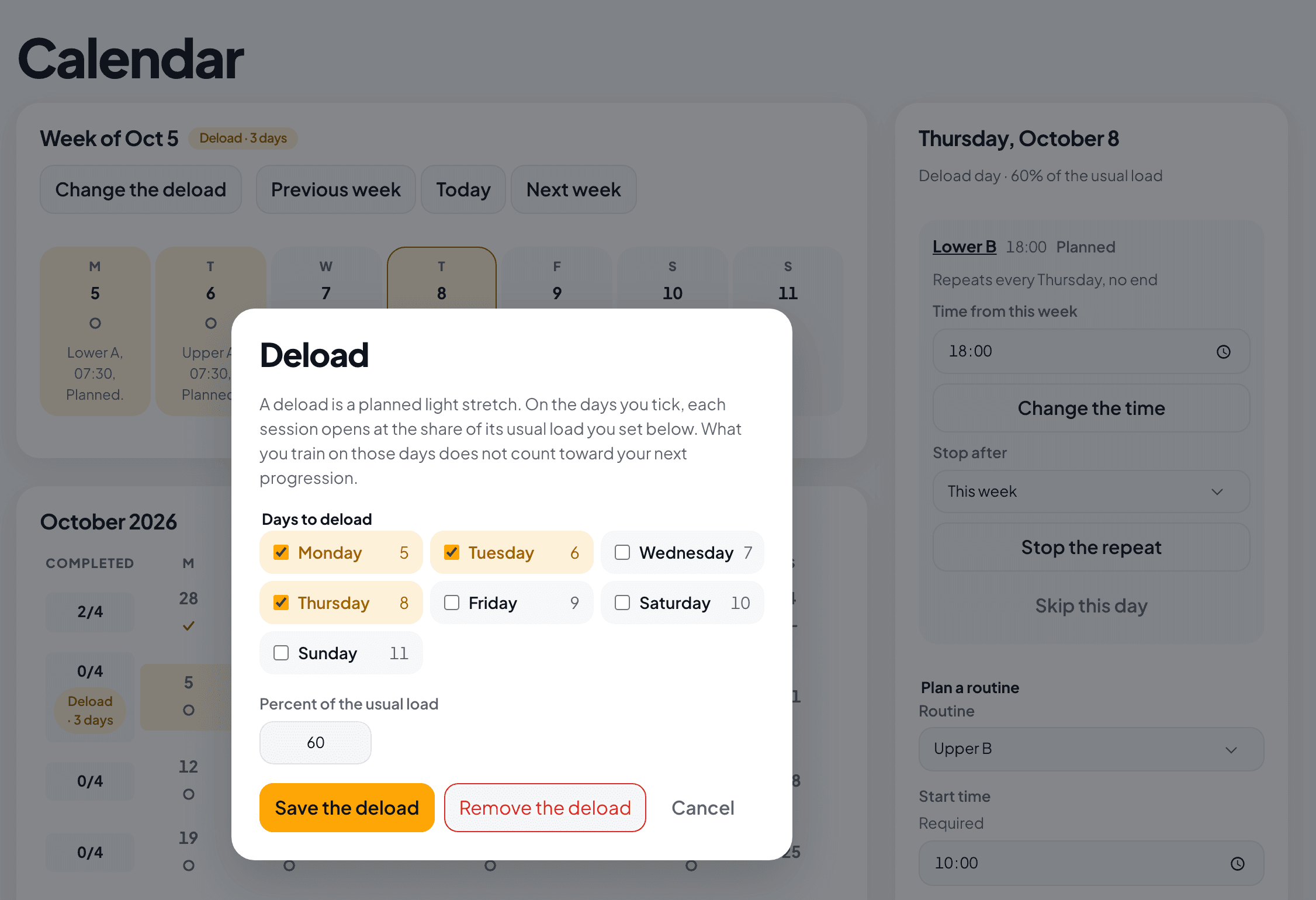
On a training week, tick the days you want to train light and set a share of the usual load. Each session on those days opens at that share. What you train on those days does not count toward your next progression.
Try it against your own training.
Free to start, on the web and on your phone.